From first launch to your castle
Esta página aún no está disponible en tu idioma.
Quick answer: a new web account sets up four things before the castle opens: a referral code, a profile (only if the game asks), a language, and a starter pack if you do not have one yet. Then Elara starts the tutorial. In the Telegram Mini App the referral and language steps are skipped.
Older accounts may start the tutorial further in, or not at all: see Who gets the tutorial.
You do not pick a nation. The game assigns one when the account is created.
1. Enter a referral code (web only)
Section titled “1. Enter a referral code (web only)”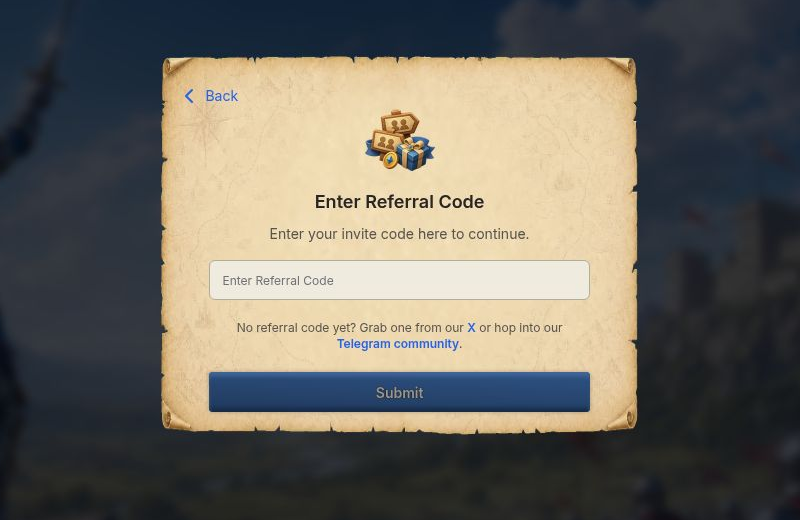
On the web you must enter a referral code before you can continue. There is no skip button, and Submit stays greyed out until you type something.
- Where to get a code: ask a friend who already plays, or use the links under the box: “No referral code yet? Grab one from our X or hop into our Telegram community.”
- An invite link fills it in for you. If you opened the game from a friend’s link, the code is already in the box. Just tap Submit.
- Wrong code: you will see “The referral code you entered could not be found. Please check and try again.” or “The referral code you entered is not valid.” Check the spelling, copy the code again, and retry.
- Success: the game shows “Referral code successfully applied!” and moves to the next step by itself.
- Telegram: you never see this screen. Your invite is applied automatically when you open the game from the invite link.
2. Set up your profile (only when asked)
Section titled “2. Set up your profile (only when asked)”If the game shows Set Up Your Profile, type a Display Name and pick an avatar, then tap Continue.
- The name must be 3–20 characters: letters, numbers, spaces,
_or-. Otherwise you will see “Name must be 3-20 characters (letters, numbers, spaces, _ or -).” - You can change your avatar later from your profile.
3. Choose your language (web only)
Section titled “3. Choose your language (web only)”Pick your language and confirm. You can change it later in Settings. In Telegram the game uses your Telegram language and skips this step.
After you confirm, the game goes full screen and locks to landscape where your device allows it.
4. Starter pack
Section titled “4. Starter pack”The game will not open the castle until your account has a starter pack. If you do not have one, you land on Choose Your Starter Pack. You have two ways through:
- Buy a pack. The packs are Squire, Knight, Warlord and Sovereign. Pack items arrive in your Bag as soon as you enter. See Store and packs for how buying works.
- Redeem a gift code. Tap Have a gift code?, enter your code (it looks like
XL-XXXXXXXXXX) and tap Redeem code.
You can also reach this from the referral screen: if the game says “Buy any pack to enter the realm. Pack items arrive in your Bag as soon as you enter.”, tap View packs and gift codes. Nothing is wrong with your referral code in that case.
Rotate your phone
Section titled “Rotate your phone”On a phone held upright, setup stops with Rotate your phone — “Play in landscape for the best experience.” Turn the phone sideways. If you see a Rotate now button, you can tap it instead. iPhones show no button, so rotate by hand.
While the game files download
Section titled “While the game files download”The first time you open the game, you may see Preparing your kingdom… with a progress bar. It waits at most 15 seconds. After that the download carries on in the background and you can play. A small badge (“Downloading assets …%”) shows the progress.
If something goes wrong
Section titled “If something goes wrong”- Stuck on a spinner after choosing a language (Telegram): close the Mini App and open it again from Telegram.
- Referral error that does not go away: make sure the code has no spaces and comes from a current player. Try a different code.
- Nothing happens after setup: wait for the download badge to finish, then reload the game. Still stuck? See Tutorial stuck? Fixes.
- You are on a phone browser and the game only shows install steps: see Install the app.
- Still blocked after these steps: open a ticket from Setting → More → Support. Include your player ID and what the screen says. Contact support has the exact steps.