Signing in and your account
Esta página aún no está disponible en tu idioma.
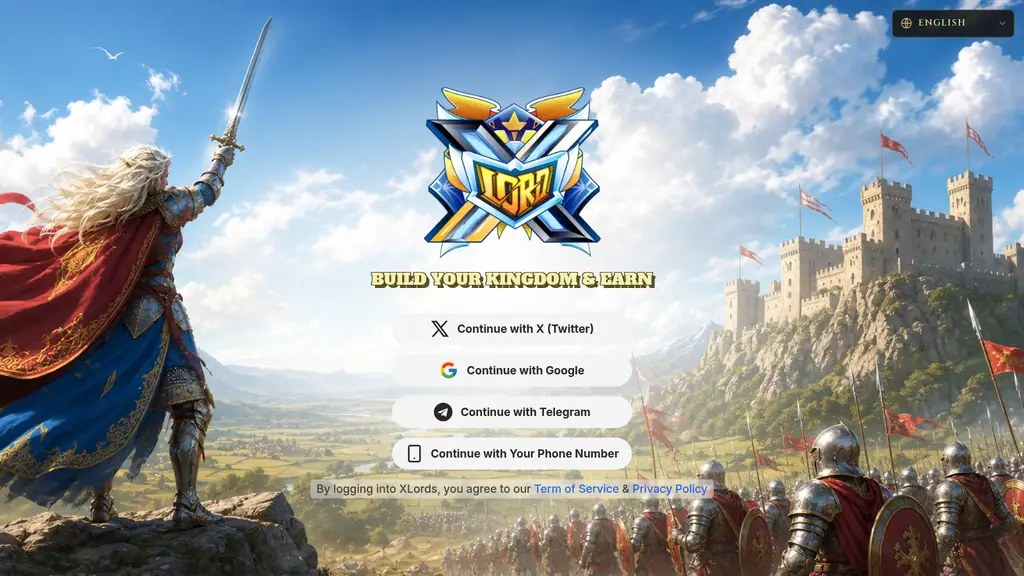
Quick answer: on the login screen you can sign in with Continue with X (Twitter), Continue with Google, Continue with Telegram, or Continue with Your Phone Number. If you open the game from inside Telegram, there is no choice: it signs you in with your Telegram account on its own. There is no crypto-wallet sign-in in the live game.
Sign in with the same method every time
Section titled “Sign in with the same method every time”Your progress belongs to the account behind the method you used, not to your device. Each method is its own login:
- Telegram (the Telegram Mini App and the Continue with Telegram button on the web) is one account, tied to your Telegram account.
- X, Google, and phone number are separate logins from Telegram. If you sign in with a method you did not use before, you can end up in a different, empty account.
- If a sign-in says an account already exists for your email, sign in with the original method first, then link the new one in Settings.
If your castle looks new or empty after signing in, sign out and try the method you used the first time before doing anything else.
Sign in with Telegram on the web
Section titled “Sign in with Telegram on the web”Use this when you play in a browser or the installed app but your account is the Telegram one.
- Tap Continue with Telegram.
- Open the XLords bot in Telegram and send
/login. - Enter the code the bot sends you in Login code, then tap Verify and continue.
The code works once and expires after 5 minutes (the screen counts it down). Asking the bot for a new code makes the old one stop working. If the screen says “That code is not right”, check the latest message from the bot. If it says “Too many tries. Wait about 15 minutes, then try again.”, wait, then request a fresh code.
Sign in with a phone number
Section titled “Sign in with a phone number”Enter your number, tap Generate OTP, then enter the 6-digit code you receive and tap Verify & Continue. You can ask for another code when the Resend OTP countdown ends. If you see “Too many sign-in attempts from this device”, sign-in is paused for a while. Your account and progress are safe. Reinstalling the app or clearing its data does not lift the pause; wait, then try the same number again.
Link your Google account
Section titled “Link your Google account”Linking Google gives you a second way back into the same account.
- Tap the Setting button. The More panel opens.
- Tap Account, then Google Account (“Link your Google account”).
- Pick your Google account in the window that opens.
Notes:
- The same screen has Sign Out.
- Linking is not offered if you play through the Telegram Mini App.
- If Google says the account is already linked to another XLords account, use that account or pick another Google account.
- In this version, Account offers only Google linking and Sign Out. It does not offer phone number or X linking.
If something goes wrong
Section titled “If something goes wrong”Telegram problems
Section titled “Telegram problems”| What you see | What to do |
|---|---|
| Couldn’t connect / “We couldn’t sign you in. Please close the app and open it again.” | Close the game and open it again from Telegram. Try Again reloads the page. |
| Please reopen the game | The game stayed open too long (over 24 hours) and needs a fresh start. Close it and open it again from Telegram. Reloading does not help. |
| Please sign in again (a browser tab opened from a Telegram link) | The old Telegram launch is too old to use. Tap Sign in again and sign in on the login screen. Your account and progress are safe. |
Connection and browser problems
Section titled “Connection and browser problems”| What you see | What to do |
|---|---|
| “Failed to connect to the server” with Tap to reconnect and Clear cache & reload | Tap Tap to reconnect first. If it keeps failing, tap Clear cache & reload to load a fresh copy of the game. |
| Google or X sign-in fails with an “origin mismatch” error | Sign-in only works from the official game addresses, game.xlords.tech or xlords.tech. Open the game from one of them, not from a copy, a proxy, or another domain. |
| “This browser can’t complete sign-in here” or “Your browser blocked the sign-in window” | Open the game in your phone’s normal browser (not inside another app) and allow pop-ups for XLords. |
| The login screen is cut off on a phone | The sign-in screens work in portrait. The game itself needs landscape; see Install the app. |
Suspended account
Section titled “Suspended account”If you see Account suspended, the screen explains the reason and has Appeal this decision. Use it. Support cannot promise a result.
Still stuck
Section titled “Still stuck”Never share a login code, OTP, or password with anyone, including people who say they work for XLords.
If none of this fixes it, open a ticket from Setting → More → Support and include the sign-in method you used, the exact message on screen, your device and browser, and the time. See Contact support.