Contact support and track your ticket
Это содержимое пока не доступно на вашем языке.
Open the menu, tap the Setting icon, and in the More panel tap Support. The Contact Support window opens on the New request tab. Fill it in and tap Send Help. Your ticket then shows up under My tickets, and support answers there.
You need to be signed in to send a ticket.
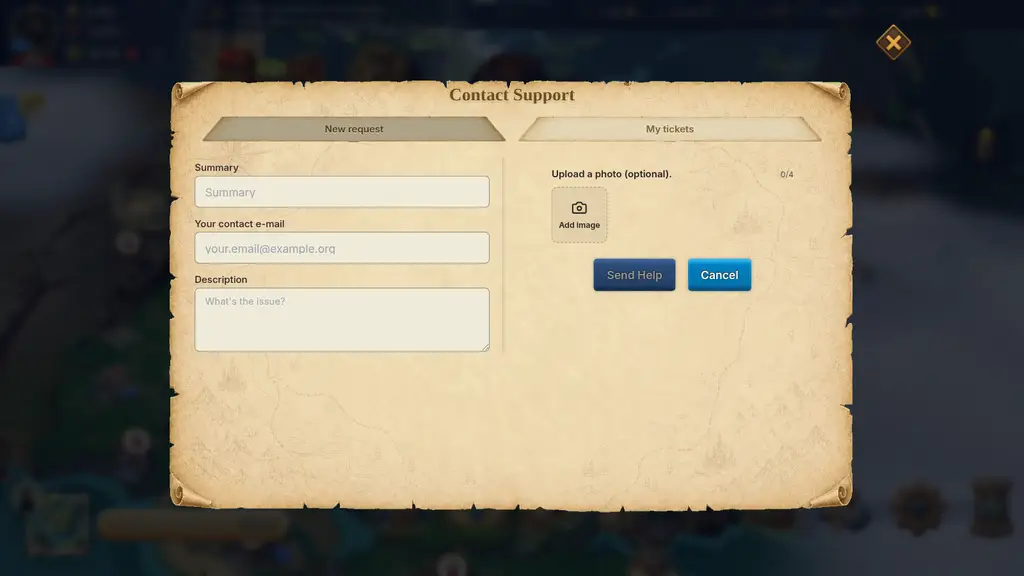
Send a ticket
Section titled “Send a ticket”On New request:
| Field | Rule |
|---|---|
| Summary | Required. Up to 180 characters. One line that names the problem. |
| Your contact e-mail | Optional. If you fill it in, it must be a valid address. |
| Description | Required. Up to 4,000 characters. |
| Upload a photo (optional) | Up to 4 images. PNG, JPG, WebP, GIF or AVIF only, each up to 10 MB. |
The Send Help button stays off until Summary and Description are filled in.
Report a Bug (in the same More panel) is a second form that creates a ticket of type Bug report. It asks for Summary, Name, Email (optional), Description and one image (optional), and its button is Send Report. After you send it, the game opens My tickets. Bug reports and normal tickets live in the same list and follow the same rules below. If you are not sure which to use, use Support.
What to put in the ticket
Section titled “What to put in the ticket”Support can only look into your account if the ticket says which account and what happened. Include:
- Your player ID. Open your profile and copy the number next to ID (it looks like
#12345). Only you can see it. Tap the ? next to it to read why. Send it to support, not in public chats. - What you did, what you expected, what you saw. Copy any error message or code word for word.
- When it happened. Date, time and your time zone.
- A screenshot of the problem or the error.
- For money questions (deposit, withdrawal, pack purchase): the amount, the token and network, and the transaction hash if you have one.
Never send a password, a private key or a wallet recovery phrase. The XLords Privacy Policy tells you not to.
Follow your ticket
Section titled “Follow your ticket”Open Support → My tickets (or tap Refresh to reload). The list shows your tickets, the latest first, 20 at a time. Tap Load more for older ones. Tap a ticket to read the whole conversation, with your messages marked You and replies from the team marked Support.
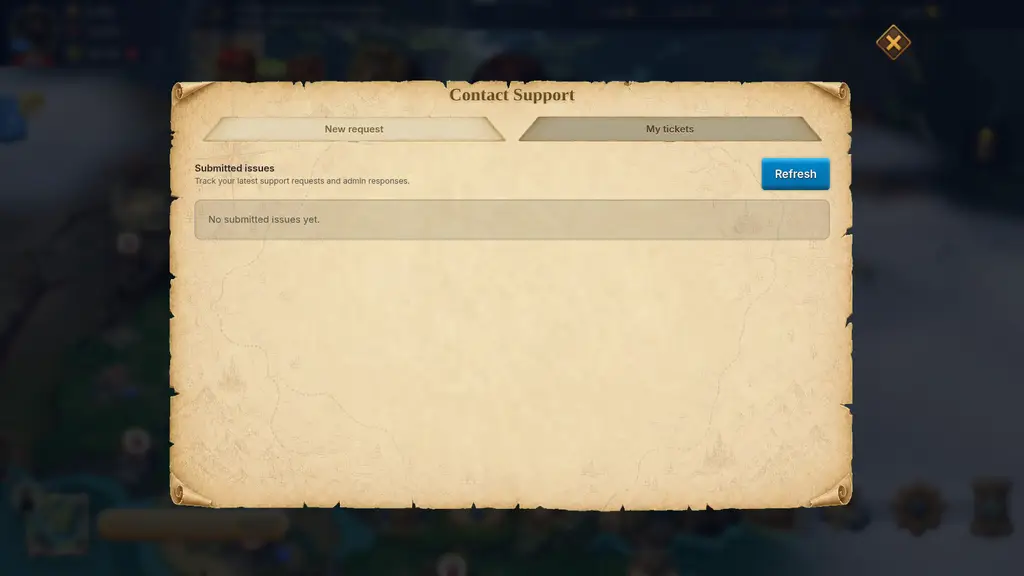
Every ticket has one of four statuses:
| Status | What it means |
|---|---|
| Open | Sent. Waiting for the team. |
| In progress | The team is working on it. A ticket also goes back here when you reply to a Resolved one. |
| Resolved | The team marked it as answered. You can still reply. |
| Closed | Finished. You cannot reply to it. |
While the window is open, the status of your tickets updates by itself. When support replies, you also get a mail in your Mail inbox. The mail title is your ticket’s summary and the body is the reply.
Replying
Section titled “Replying”Open the ticket, write in Write a reply…, optionally add images, and tap Send reply.
- If the ticket is Resolved and you reply, it goes back to In progress.
- If the ticket is Closed, you cannot reply. The game says “This ticket is closed. Create a new request if you still need help.” Send a new ticket and mention the old ticket’s ID, which is shown at the top of the ticket.
Limits
Section titled “Limits”| Limit | Value |
|---|---|
| New tickets | 5 per hour |
| Replies | 20 per hour, and 30 replies per ticket |
| Summary / description / reply | 180 / 4,000 / 4,000 characters |
| Images | 4 per ticket or reply (1 on Report a Bug), 10 MB each |
Support does not promise a reply time, and a ticket does not guarantee a refund, compensation or any other outcome.
If something goes wrong
Section titled “If something goes wrong”- “You’ve sent too many support requests. Please try again later.” You used your 5 tickets for this hour. Wait, and add what you wanted to say as a reply to your newest ticket instead of opening a new one.
- “You’ve reached the reply limit for this support request.” You used all 30 replies on this ticket. Open a new ticket and mention the old ID.
- “Please sign in again to contact support.” Your session ended. Sign in again and resend.
- “Something went wrong” when sending. Check your connection and tap Send Help again. Your text stays in the form, and the game sends the same request again, so you do not get duplicates.
- “File is too big!” or “Only PNG, JPG, WebP, GIF, or AVIF screenshots are supported.” Pick a smaller or different image.
- “Could not load your tickets” or “Could not load this ticket”. Tap Refresh.
- You cannot sign in at all. The ticket form needs a signed-in game. See Login and accounts first.